Best Settings for HappyMod Performance
September 21, 2026 (4 weeks ago)
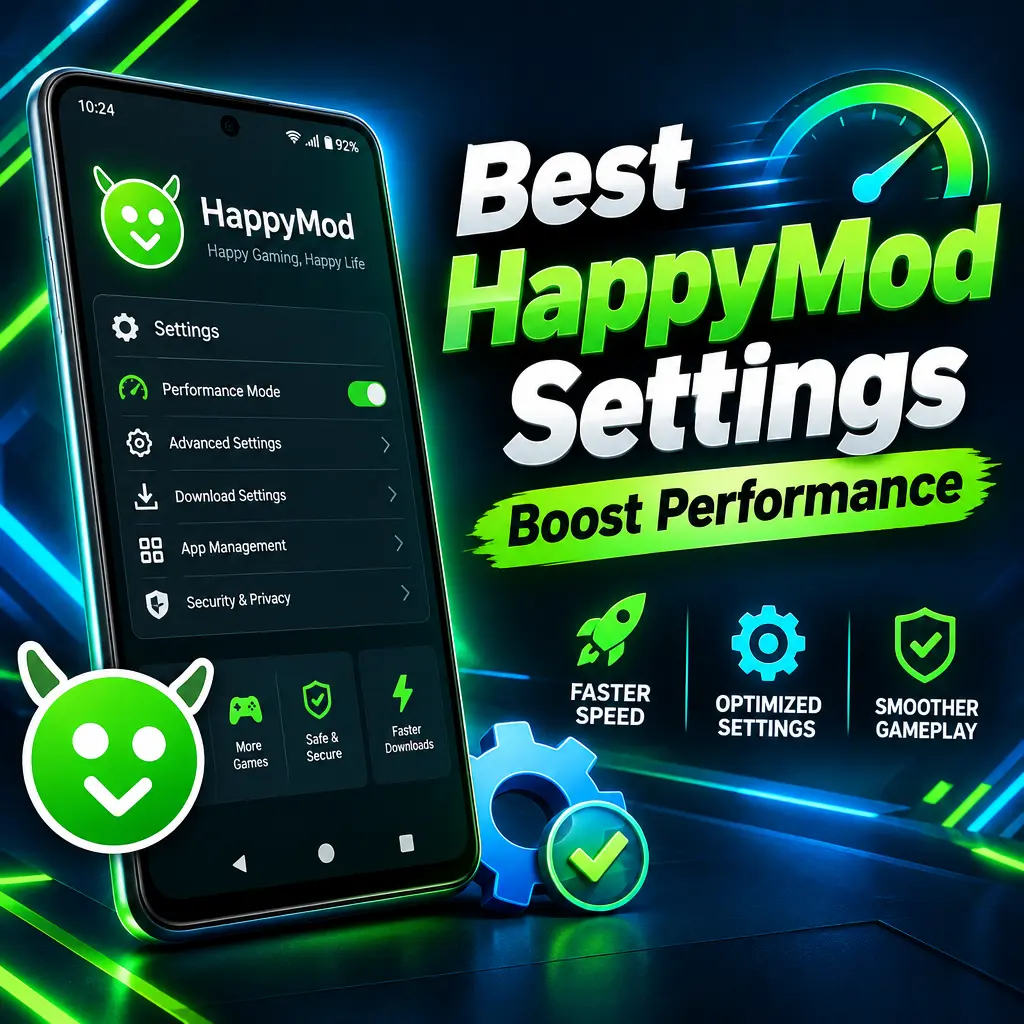
HappyMod can feel slow if your phone is low on storage, your internet connection is unstable, or the app has too much old cache stored in the background. Since HappyMod is a marketplace for modified Android apps and games, its performance depends on more than just the app itself. Downloads, APK files, app permissions, storage space, battery settings, and network settings all affect how smoothly it works. The best setup is simple: keep the app light, give it the permissions it actually needs, control background activity, and make sure your phone has enough free space to install and manage modded apps properly.
1. Clear Cache Without Removing Important Data
Cache helps apps load faster, but too much cache can slow HappyMod down over time. If thumbnails, app pages, or download screens are loading slowly, clearing the cache is one of the easiest fixes. This removes temporary files but keeps your app data and settings.
- Open your phone’s Settings.
- Go to Apps or App Management.
- Find and open HappyMod.
- Tap Storage.
- Choose Clear Cache.
Do not tap Clear Data unless HappyMod is crashing or refusing to open. Clearing data resets the app, removes saved preferences, and may require you to sign in or set everything up again.
2. Keep Enough Free Storage Space
HappyMod works with APK files, updates, and downloads, so storage space is very important. If your phone is almost full, downloads may stop, installations may fail, and the app may freeze while browsing. Try to keep at least 3 GB to 5 GB of free space if you download large games.
- Delete old APK files after installing apps.
- Remove games or apps you no longer use.
- Move photos and videos to cloud storage or an SD card.
- Use your phone’s built-in storage cleaner once a week.
- Check the Downloads folder for duplicate files.
Large modded games can need extra space during installation. For example, a 1.5 GB game may need more than 3 GB free while the package is being unpacked and installed. Low storage is one of the most common reasons for bad performance.
3. Use Stable Wi-Fi for Faster Downloads
HappyMod performance is strongly connected to your network speed. If pages load slowly or downloads fail, your connection may be the real issue. Wi-Fi is usually better than mobile data for downloading large APK files, especially games with extra resources.
- Use a strong Wi-Fi signal when downloading large files.
- Pause other downloads on your phone or computer.
- Stay close to your router if downloads keep stopping.
- Restart your router if the connection feels slow.
- Avoid downloading while using a VPN if it reduces speed.
If you use mobile data, make sure Data Saver is not blocking HappyMod. Some Android phones limit background data, which can cause downloads to pause when the screen turns off.
4. Adjust Battery Optimization Settings
Android battery optimization can stop apps from running properly in the background. This is useful for saving power, but it can interrupt HappyMod downloads or make the app reload often. If your downloads stop when you leave the app, check the battery settings.
- Go to Settings and open Battery.
- Find Battery Optimization or App Battery Management.
- Select HappyMod.
- Choose Unrestricted or Don’t Optimize if available.
Use this setting only if you download often. If you rarely use HappyMod, keeping normal battery optimization is fine. The goal is to stop Android from closing the app during active downloads, not to let it run all the time for no reason.
5. Enable Only Needed Permissions
HappyMod may need storage access to save APK files and install packages. However, giving every permission is not always good for performance or privacy. Too many permissions can allow extra background activity, notifications, and system prompts.
- Open Settings.
- Go to Apps and choose HappyMod.
- Tap Permissions.
- Allow only the permissions required for downloads and installation.
- Turn off permissions that are not needed for normal use.
Storage permission is usually the most important one. If you cannot download or open APK files, check this permission first. On newer Android versions, you may also need to allow access to install unknown apps from HappyMod or your file manager.
6. Manage “Install Unknown Apps” Carefully
To install APK files from HappyMod, Android may ask you to allow installation from unknown sources. This setting does not make HappyMod faster by itself, but it prevents repeated installation blocks and delays.
- Go to Settings.
- Open Security or Privacy.
- Find Install Unknown Apps.
- Select HappyMod or your file manager.
- Turn on permission only for the app you use to install APKs.
For better control, turn this permission off again when you are done installing. This keeps your phone safer while still allowing smooth installation when needed.
7. Turn Off Unneeded Notifications
Notifications can be useful for download updates, but too many alerts can create background activity and distractions. If HappyMod sends frequent update alerts, recommendations, or promotional messages, reducing notifications can make the experience cleaner.
- Open Android Settings.
- Go to Notifications.
- Select HappyMod.
- Keep download notifications enabled if you need them.
- Turn off promotional or general alerts if available.
This is a small optimization, but it helps if you use a lower-end phone. Less background activity means more memory and battery for the apps and games you actually want to use.
8. Limit Background Apps Before Downloading
If your phone has limited RAM, HappyMod may lag when many apps are open at the same time. Games, social media apps, browsers, and video apps can use a lot of memory in the background. Before downloading or installing a large modded game, close apps you are not using.
- Close recent apps before opening HappyMod.
- Stop heavy apps like games, video editors, and streaming apps.
- Restart your phone if it has been running for several days.
- Avoid split-screen mode while downloading large files.
- Do not run phone cleaner apps constantly, as they can interrupt downloads.
A quick restart can fix many slowdowns because it clears temporary memory and stops stuck background processes. This is especially helpful on older Android devices.
9. Keep HappyMod Updated
Using an outdated version can cause slow loading, broken downloads, and compatibility issues. Newer versions often include bug fixes, better server handling, and improved support for newer Android systems. If HappyMod feels slow for no clear reason, check whether a newer version is available from the official HappyMod source.
- Open HappyMod.
- Check the app’s update section if available.
- Download updates only from a trusted source.
- Install the update after clearing old APK files.
Avoid installing random copies from unknown websites. Badly modified versions of the HappyMod app can cause crashes, ads, slowdowns, or security problems.
10. Use Smart Download Habits
Good performance also depends on how you use the app. Downloading many large files at once can overload your storage, network, and processor. A better method is to download one app or game at a time, install it, test it, and then remove the APK if everything works.
- Download one large game at a time.
- Install immediately after downloading.
- Delete APK files you no longer need.
- Check user comments before downloading a mod.
- Avoid versions with many crash reports.
User comments can save time because they often mention if a mod crashes, fails to install, or performs badly on certain devices. Choosing stable mods is one of the best ways to improve your overall HappyMod experience.
Final Best Settings Checklist
For the best HappyMod performance, use a balanced setup. Clear the cache regularly, keep enough free storage, use stable Wi-Fi, allow battery freedom only when downloading, and manage permissions carefully. Turn off unnecessary notifications, close heavy background apps, and keep HappyMod updated. These simple settings can make browsing smoother, downloads faster, and installations more reliable, especially on older or budget Android phones.
Recommended For You